
يقع أمر الشراء في مسار الشراء إلى الدفع بينكم وبين المورد قبل اعتماد فاتورة مستلمة نهائية: أوامر الشراء توثّق الكميات والأسعار المتفاوض عليها، وتُستخدم كمرجأ عند الاستلام والمطابقة والفوترة.
تنتقل الحالات من مسودة إلى تنفيذ جزئي أو كامل بحسب منتجكم؛ يمكن ربط الإنفاق بمشاريع عند ضبط مؤسستكم ذلك. الأسفل يعيد خطوات إنشاء أمر شراءكما في دليل الترحيب مع تصويب صياغة المورد وأمر الشراء (وليس العروض أو المبيعات).
إنشاء أمر شراء
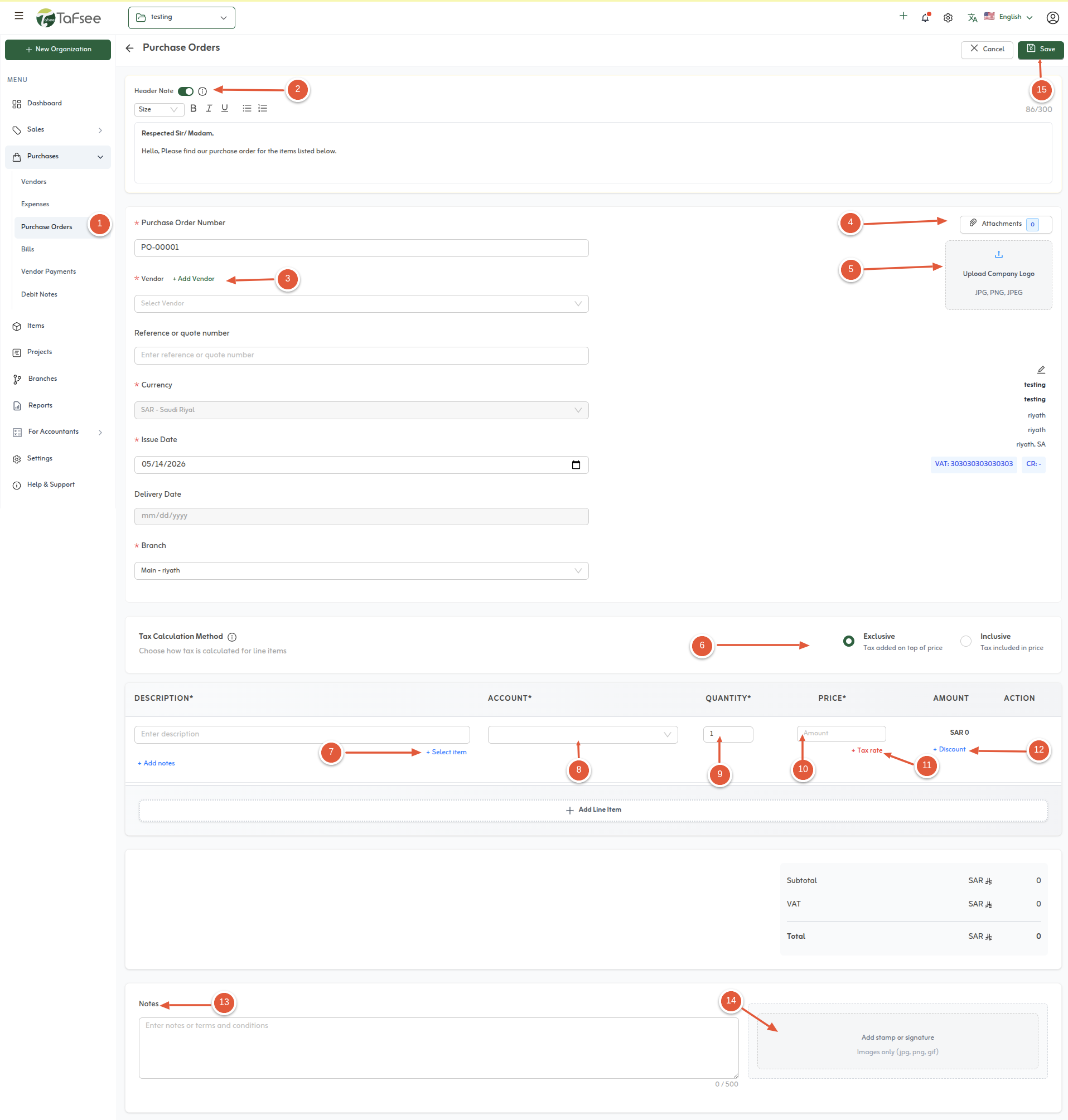
الخطوات والشاشة نفس روح دليل الترحيب؛ استخدموا لقط الشاشة كمرجع بصري.
- انتقل إلى المشتريات، ثم اختر أمر الشراء لإنشاء مستند جديد.
- أضف ملاحظة رأساً اختيارية عند الحاجة إلى سياق فوق البنود.
- حدد المورد الذي يخصه الطلب.
- أضف مرفقات لأمر الشراء عند الحاجة إلى عروض أسعار أو موافقات موثَّقة.
- ارفع شعار المؤسسة إذا كان ملف PDF يجب أن يعرض الهوية.
- اختر ما إذا كانت الضريبة شاملة أو حصرية على هذا الأمر.
- أضف بنود السطور في قسم العناصر (أصناف من الكتالوج أو تفاصيل تُدخل يدوياً).
- اختر نوع الحساب لكل سطر عندما يتطلب ذلك دليل الحسابات (مثل مصروف أو مخزون).
- حدد الكميات لكل سطر.
- حدد أسعار الوحدة لكل سطر.
- اختر معاملة الضريبة لكل سطر—ضريبة القيمة المضافة على المشتريات، معدل صفري، معفى، خارج النطاق—حسب التوريد.
- طبّق خصماً على السطر بنسبة أو مبلغ ثابت.
- أضف ملاحظات يجب أن تطبع أو تظهر على أمر الشراء.
- أضف توقيعاً رقمياً أو ختماً إذا كانت الموافقات تتطلب ذلك.
- احفظ أمر الشراء لمتابعة الإرسال أو التنفيذ أو التحويل إلى فاتورة مستلمة عند استلام البضاعة أو الخدمة.
تعديل أمر الشراء
طالما الأمر في حالة تسمح بالتعديل (غالباً مسودة أو لم يُستكمَل استلامه أو تحويله بالكامل)، افتح السجل من قائمة أوامر الشراء واستخدم تحريراً عادياً: عدّلوا البنود أو الكميات أو الأسعار أو الضرائب أو المرفقات ثم احفظوا. أي قيد على التعديل بعد اعتماد أو إرسال خارجي يعتمد على دوركم وسياسات مؤسستكم في التطبيق.
بعد بدء الفوترة من الأمر أو استلام جزء من الكميات، غالباً يقتصر التعديل على ما لم يُستخدم بعد أو يتم عبر مستند لاحق (مثل أمر تكميلي أو تسوية مع المورد). احتفظوا بمرجع موافقة أو مراسلات في المرفقات إذا غيّرتم أسعاراً أو تواريخاً بعد أن رأى المورد النسخة الأولى.
مسار أوامر الشراء المعتاد
- إنشاء وتسوية داخلية: صياغة الأمر وفق المواصفات والأسعار المتفق عليها، ثم الموافقة الداخلية إن وُجدت.
- إرسال أو مشاركة مع المورد: مشاركة PDF أو طلب عبر القنوات المعتادة حتى يكون للطرفين مرجع واحد للكميات والشروط.
- التنفيذ والاستلام: استلام البضاعة أو الخدمة وفقاً للجدول؛ تحديث الكميات المستلمة في النظام إذا كان ذلك مدعوماً يوفّر مطابقة أوضح مع الفاتورة اللاحقة.
- الفاتورة المستلمة: عند إصدار المورد الفاتورة، تحويل أو مطابقة الأمر إلى فاتورة مستلمة تحافظ على ربط الأسطر وتقلل إعادة الإدخال.
- الدفع: تسجيل دفع المورد ضد الفاتورة المستلمة لإغلاق الذمة الدائنة وتسوية النقدية والبنك.
متى تستخدمون أمر الشراء؟
استخدموا أوامر الشراء عندما تحتاجون إلى موافقة أو توثيق قبل الإنفاق، أو لمقارنة ما طلبتم بما سلّمه المورد وبما يظهر على فاتورتكم؛ هذا يقوّي ضبط الميزانية للمشاريع والأقسام ويقلل نزاعات الأسعار أو الكميات.
للمشتريات المتكررة أو ذات القيمة العالية، يبقى الأمر مركزاً واحداً للأسطر والضرائب والمرفقات، بينما يمكن للمصروفات البسيطة غير المتكررة أن تمرّ بدون أمر شراء وفق سياسة مؤسستكم—المهم أن يبقى المسار المحاسبي متسقاً بين الطلب والاستحقاق والدفع.
نصائح سريعة
- اربطوا كل سطر بالحساب أو المشروع الصحيح قبل الإرسال للمورد.
- احتفظوا بعروض أسعار المورد في المرفقات لتسهيل المطابقة لاحقاً.
- عند الاستلام، حوّلوا الأمر إلى فاتورة مستلمة لتقليل إعادة الإدخال.