
Add or Remove Your Logo
Adding your organization's logo gives invoices and documents a professional look. Upload it from Company settings under Organization Details.
How to Add Logo
- 1Sign in to your account
Sign in to Tafsee Books using your credentials.
- 2Go to Settings
Click on the Settings icon in the top right corner of the screen.
- 3Open the Company tab
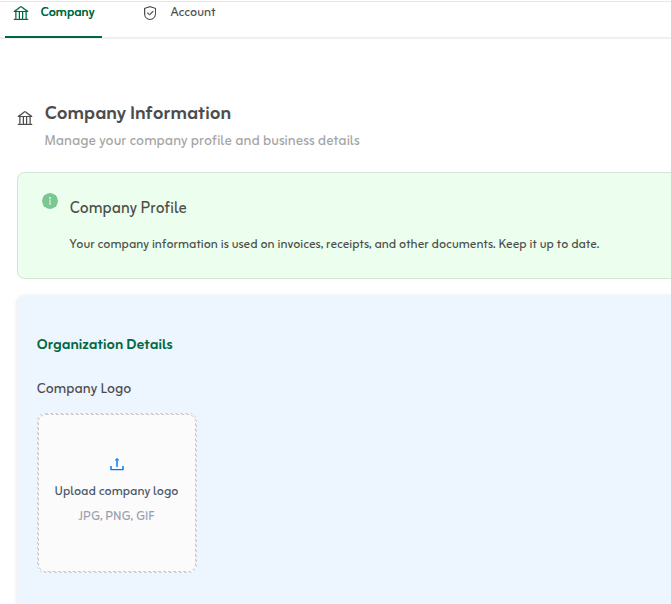
On the Settings page, select the Company tab to view your organization details.
- 4Upload Logo
Under Organization Details, click the company logo upload area and choose an image file from your device.
- 5Save Changes
Click the Save button to confirm the change.
After you save, your logo appears on invoices, quotes, and PDF documents you send to customers and vendors, so your brand is consistent on every official document.
Recommended image specifications
- Supported formats: JPG, PNG, and GIF
- Maximum file size: 2 MB
- Recommended dimensions: at least 240 × 240 pixels
- PNG with a transparent background is best for invoices
To change your logo later, return to the same Organization Details section, upload a new file, and save. You can also read the home overview guide to see how your organization details appear on the dashboard.