
يُستخدم تطبيق الرصيد على الفاتورة لمقاصة رصيد إشعار دائن غير مُستخدم مع فاتورة عميل مفتوحة: يخفّض الذمة دون تسجيل مقبوضة نقدية لم تمر عبر البنك، ويبقي سلسلة المستندات واضحة للمراجعة وضريبة القيمة المضافة.
يعمل التطبيق عادةً من شاشة الفاتورة بعد إصدار إشعار الدائن. يعرض النظام الائتمان المتاح لكل عميل ويمنع تطبيق نفس الإشعار مرتين أو تجاوز الرصيد الحر. كل إقران يُسجَّل بالمستخدم والتاريخ والمرجع لتسهيل مطابقة أعمار الذمم مع سجل المبيعات في نهاية الشهر.
مراجعة الفاتورة والرصيد الدائن
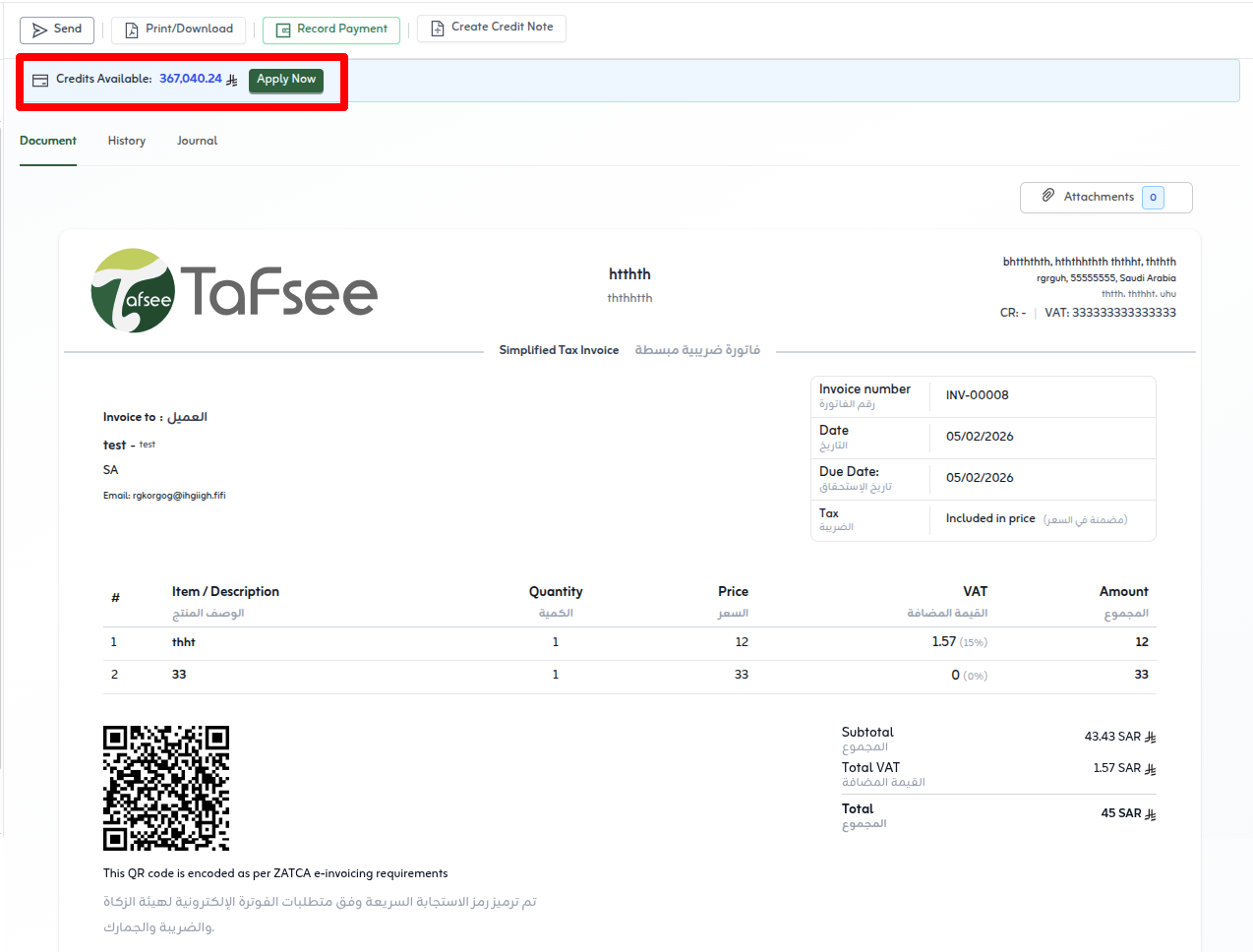
قبل التطبيق افتحوا تفاصيل الفاتورة المستهدفة. تظهر معلومات العميل والبنود والإجماليات، وغالباً شريط يبيّن أن لدى هذا العميل رصيد دائن يمكن استخدامه. استخدموا هذه الشاشة للتأكد من أن الفاتورة والإشعار يخصان نفس العميل وأن المبلغ المطلوب تسويته لا يزال مفتوحاً.
- افتح المبيعات ← الفواتير واختر فاتورة العميل التي تريد تسويتها.
- تأكد أن الفاتورة ما زالت تعرض رصيداً مستحقاً وأنها لنفس عميل إشعار الدائن.
- ابحث عن شريط الرصيد الدائن أو مؤشر الائتمان المتاح في شاشة تفاصيل الفاتورة—يعرض المبلغ الذي يمكن تطبيقه.
- دوّن مرجع إشعار الدائن والرصيد المتبقي قبل بدء التطبيق حتى لا تتجاوزوا المبلغ المسموح.
تطبيق إشعار الدائن على الفاتورة
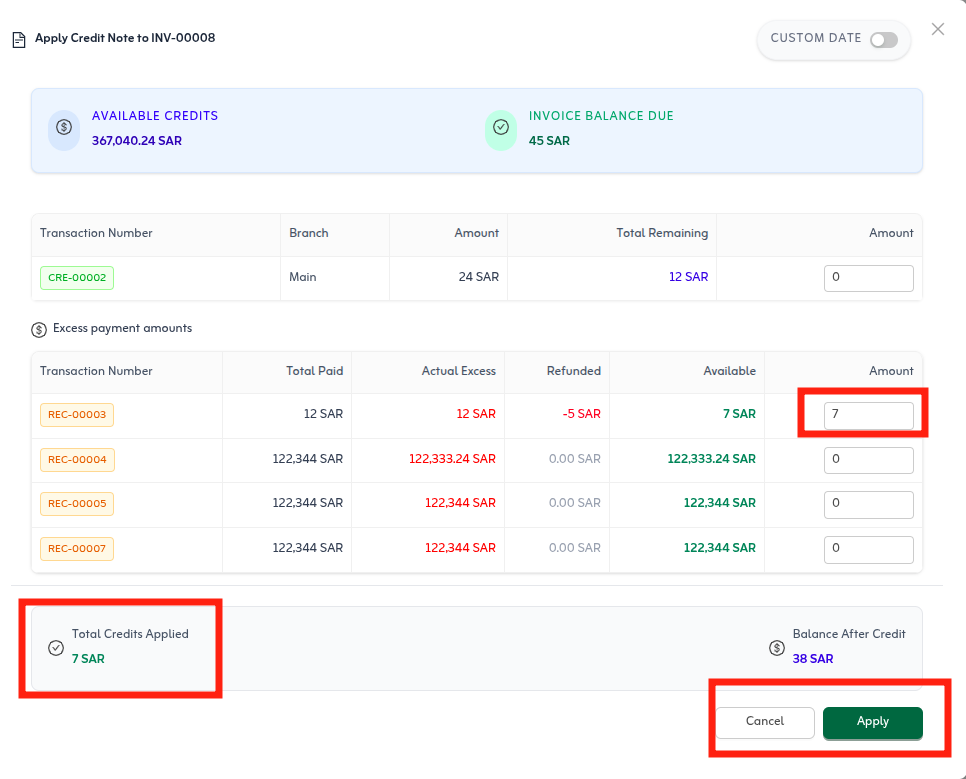
من إجراء التطبيق اختاروا إشعار الدائن والمبلغ. يمكنكم تطبيق الرصيد كاملاً إن غطى المتبقي على الفاتورة، أو جزئياً إن أردتم الإبقاء على جزء من الائتمان لاحقاً. بعد الحفظ تُحدَّث حالة الفاتورة (مدفوعة جزئياً أو بالكامل حسب المبلغ) ويقل رصيد الإشعار الدائن المتبقي.
- من عرض تفاصيل الفاتورة اختر تطبيق الرصيد الدائن (أو الإجراء المكافئ على شريط الائتمان).
- حدد إشعار/إشعارات الدائن ذات الرصيد غير المستخدم لنفس العميل.
- أدخل المبلغ المراد تطبيقه—كاملاً أو جزئياً—على إجمالي الفاتورة المفتوحة.
- راجع كيف يقلّل التطبيق رصيد الفاتورة وأي رصيد متبقٍ على الإشعار.
- أكد واحفظ ليتحدّث معاً تقرير أعمار الذمم وحالة الفاتورة ورصيد إشعار الدائن.
بعد التطبيق
- راجعوا تبويب السجل أو النشاط على الفاتورة لرؤية إشعار الدائن المُطبَّق والمرجع والمبلغ.
- إن بقي رصيد على الإشعار يمكن تطبيقه على فاتورة أخرى لنفس العميل أو اتباع استرداد إشعارات الدائن إذا سياسةكم تتطلب صرفاً نقدياً.
- لتصحيح تطبيق خاطئ استخدموا إلغاء التطبيق أو المسار المعكوس المسموح به وفق صلاحياتكم—تجنبوا حذف المستندات المرحّلة للهيئة مباشرة.
نصائح سريعة
- طبّقوا الرصيد على فواتير نفس العميل فقط—النظام يمنع الخلط بين العملاء.
- يمكن التطبيق الجزئي؛ راجعوا الرصيد المتبقي على الإشعار بعد الحفظ.
- لتصحيح خطأ، استخدموا إلغاء التطبيق بدلاً من حذف المستندات المرحّلة.