
Inventory adjustments record deliberate quantity changes—damage, shrinkage, recount differences, or opening corrections—without rewriting historical sales or purchase documents. Use them when the on-hand figure in Tafsee Books no longer matches what you physically have.
Do not confuse adjustments with normal operations: customer sales belong on invoices, supplier receipts on bills, and structured receipts or transfers on their own workflows when available. Reserve adjustments for gaps that cannot be explained by a new operational document.
After you post, reconcile inventory valuation and quantity reports so averages and balances match your intent. Below, the adjustment workspace is shown first, then the area where you define the reason for the stock change.
When to create an inventory adjustment
- A stocktake or warehouse audit shows on-hand differs from the system.
- You must write off damaged, expired, or unsellable goods.
- You discover unrecorded quantity or need an opening-balance correction after initial data load.
- You must fix legacy quantity errors when no purchase, sales return, or transfer document fits.
Before you start
- Confirm the record is an inventory-tracked product; pure service items usually do not need quantity adjustments.
- Pick the correct branch or storage location when stock is location-specific so you do not move another site's balance by mistake.
- Agree the final counted quantity with warehouse or finance so you do not post duplicate conflicting adjustments for the same SKU and day.
Adjustment quantity interface
In the adjustment workspace you pick the stocked item, and often the branch or storage location if your account uses locations. Enter the revised on-hand quantity or the difference the screen expects so the system reflects the count or audit result.
Confirm the adjustment date and unit before saving; mismatched units or items move the wrong ledger balance. Use any preview of prior quantity to sanity-check the delta before posting.
For decreases, understand how your costing method records the write-off against average cost or valuation so margin reports stay interpretable. Increases often capture stock found on the shelf that was never booked through a purchase yet.
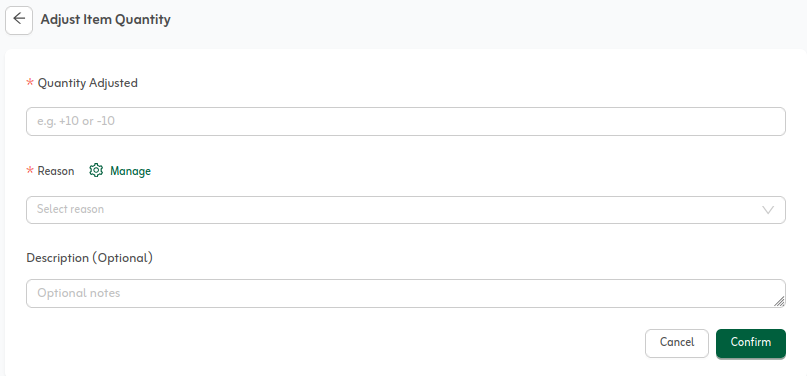
Manage reason for the stock change
The reason section lists preset causes (such as damage, cycle count, or opening balance correction) or free text depending on your organisation settings. Pick the closest match, then add a short note that points to the count sheet, location, or approver so the trail is obvious later.
Clear reasons help finance and auditors see why stock moved outside normal purchases and invoices, and they reduce back-and-forth when you review movement or valuation reports.
Consistent reason labels (for example "cycle count Mar 2026" or "damage—main DC") speed up entry and improve grouping in exports. Avoid vague notes such as "fix" with no reference—tie each adjustment to a count sheet ID, ticket, or approval email.
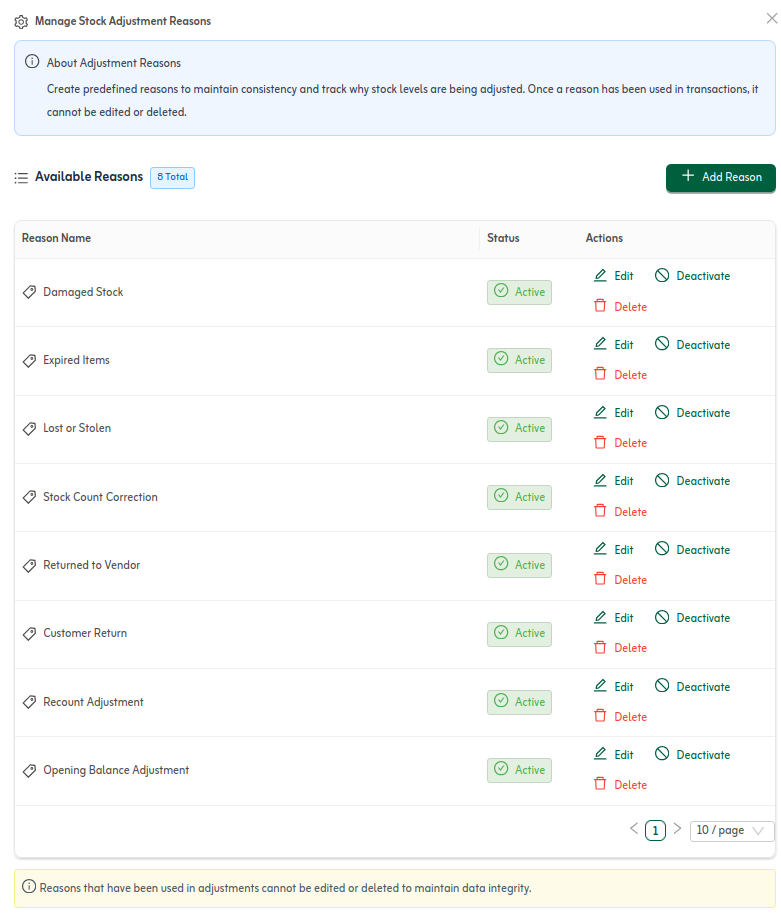
Pick a clear reason for each adjustment and tie it to a count sheet or internal approval. That keeps stock movement reports auditable without tracing only through invoices and bills.
After you post
Open stock on hand or inventory valuation for the same item and period and confirm the new quantity matches the signed count sheet. If reports still disagree, check for another branch, a duplicate SKU, or an unposted document that already covers part of the movement.
File the physical count or approval outside the app if required by policy; linking the in-app reason to that evidence keeps customs, tax, or internal audit reviews painless.
Quick tips
- Do not use adjustments instead of a bill or sales return—use the right document first.
- Verify branch and location before saving when stock is warehouse-specific.
- After posting, use the item reports guide next to confirm balances and valuation.