Welcome Guide

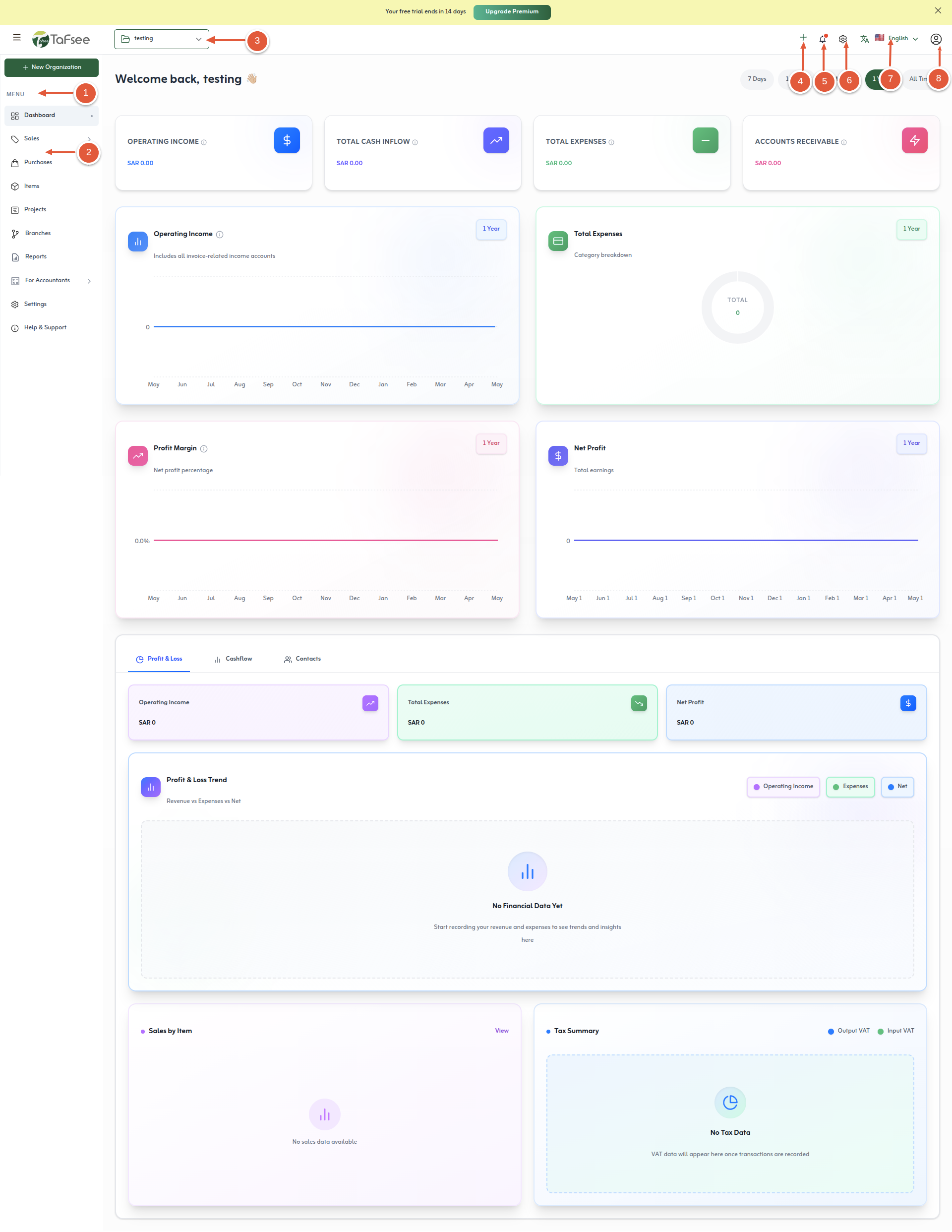
Tafsee Books Complete Guide

Everything you need to get the most out of Tafsee Books - from navigation to creating transactions.

Tip

Click any screenshot to zoom in and browse the gallery. Follow the numbered steps beside each image.

Create Customer

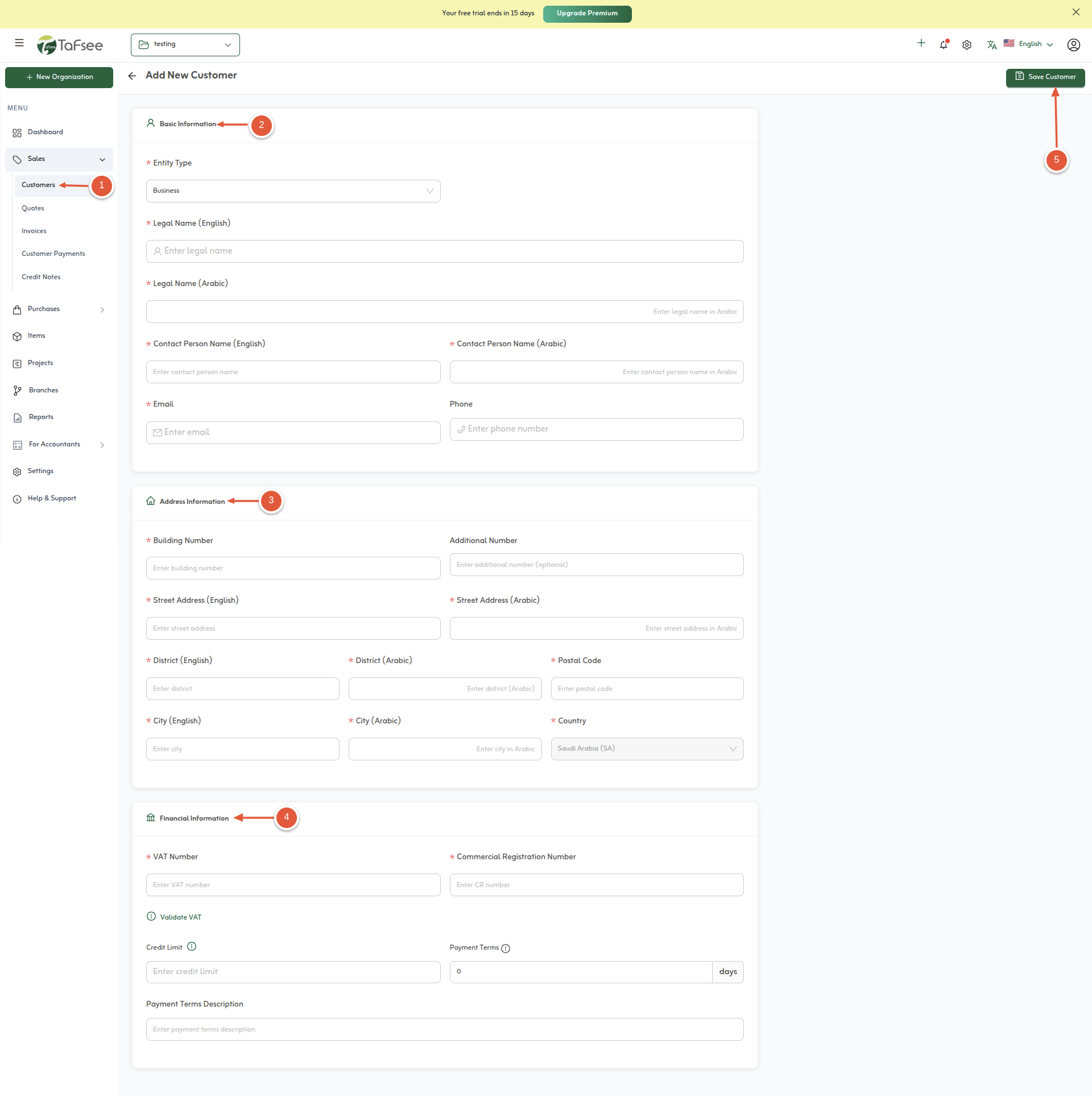
Create New Customer in Tafsee Books
  1. Click on the Customer tab to create a new customer in this section.
  2. Enter the customer's business information in the required fields.
  3. Fill in the customer's address information accurately.
  4. Provide the customer's financial information as needed.
  5. Click the Save Customer button to complete the customer creation process.

Create a Quote

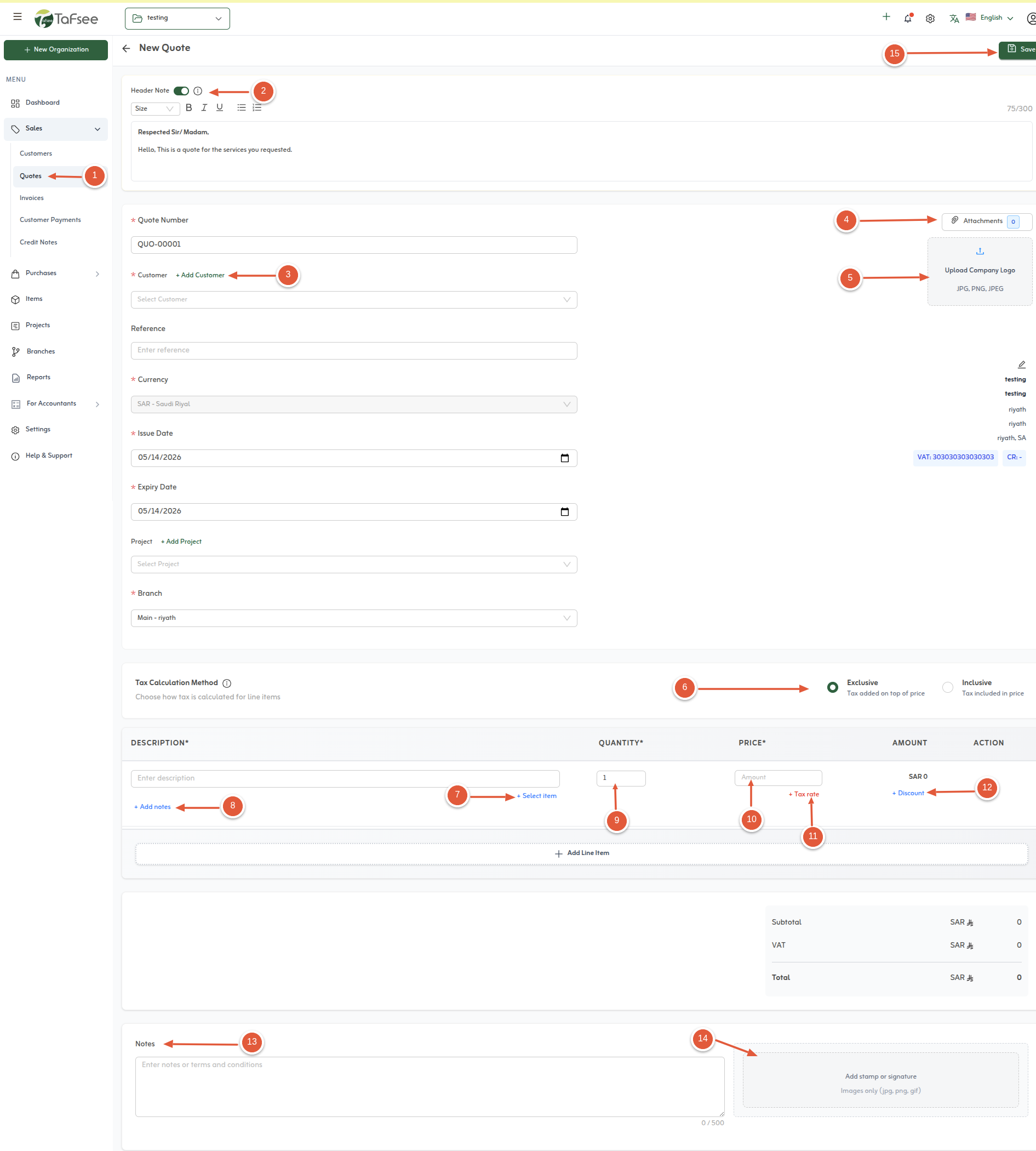
Create New Quote in Tafsee Books
  1. Click a quote tab to create quote.
  2. Add a header note for the quote; it's an optional thing.
  3. Select a customer in the customer list for the quote.
  4. Add an attachment for a quote.
  5. Upload your logo to the quote.
  6. Select your preferred tax method inclusive or exclusive based on your need.
  7. Select an item for the quote in the items section.
  8. Add a note for the individual notes for the items.
  9. Set a quantity of the item in this section.
  10. Set a price for the items.
  11. Select the tax rate options choose the vat on sales, zero rated tax, exempt, out of scope tax rate based on your preference.
  12. Set a discount for the item price based on the percentage or fixed rate.
  13. Add a note for the quote.
  14. Add your digital signature or stamp.
  15. Click the Save button to save the quote.

Create an Invoice

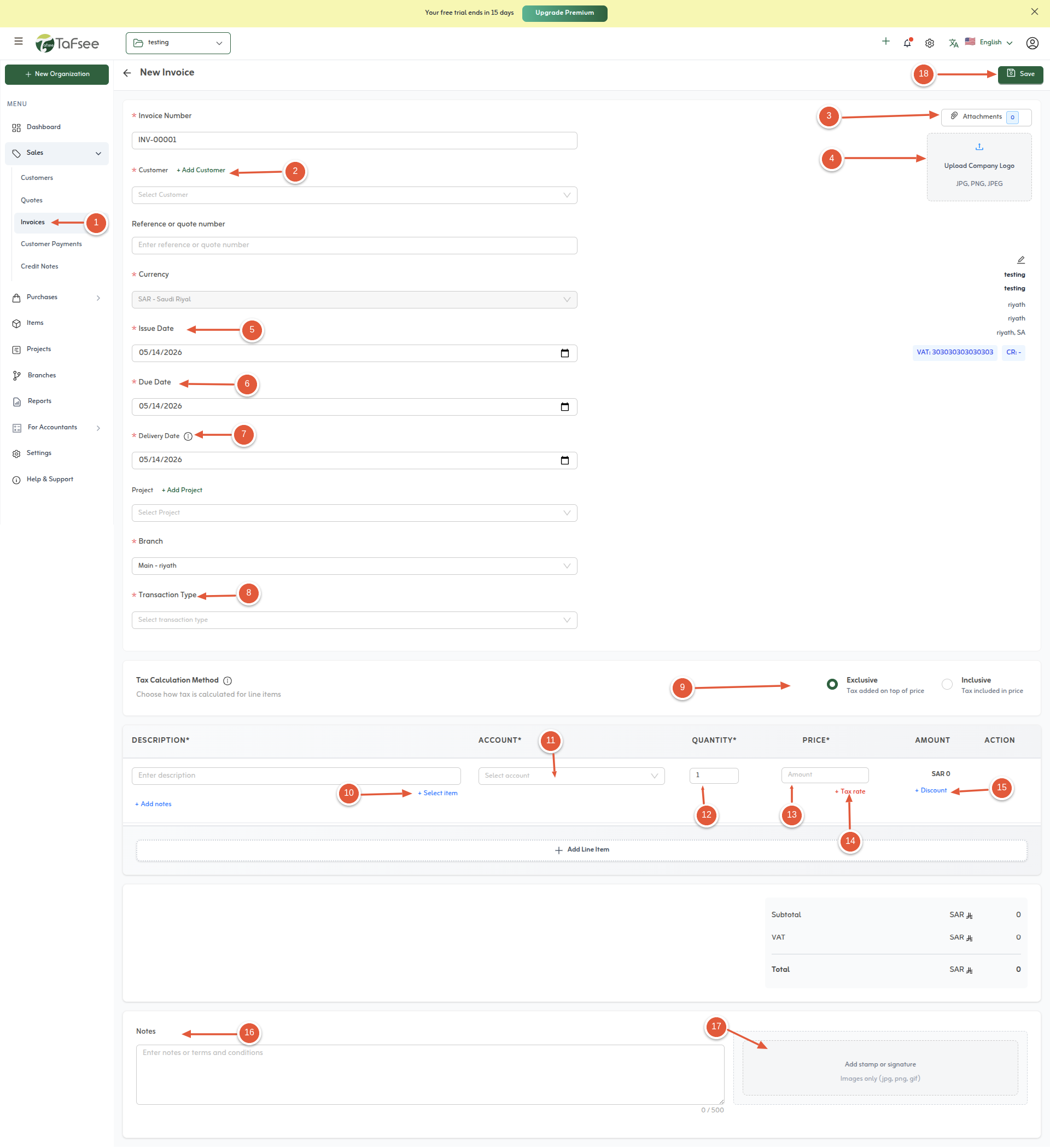
Create New Invoice in Tafsee Books
  1. Click the Invoice tab to create an invoice.
  2. Select a customer in the customer list for the invoice.
  3. Add an attachment for an invoice.
  4. Upload your logo to the invoice.
  5. Set the invoice issue date for the invoice.
  6. Set the due date for the invoice.
  7. Set the delivery date for the invoice.
  8. Select the transaction type from the options normal supply, export and others.
  9. Select your preferred tax method inclusive or exclusive based on your need.
  10. Select an item for the invoice in the items section.
  11. Select the account type for the invoice.
  12. Set a quantity of the item in this section.
  13. Set a price for the items.
  14. Select the tax rate options choose the vat on sales, zero rated tax, exempt, out of scope tax rate based on your preference.
  15. Set a discount for the item price based on the percentage or fixed rate.
  16. Add a note for the invoice.
  17. Add your digital signature or stamp.
  18. Finally save the invoice.

Create Record Payment

Create New Payment in Tafsee Books
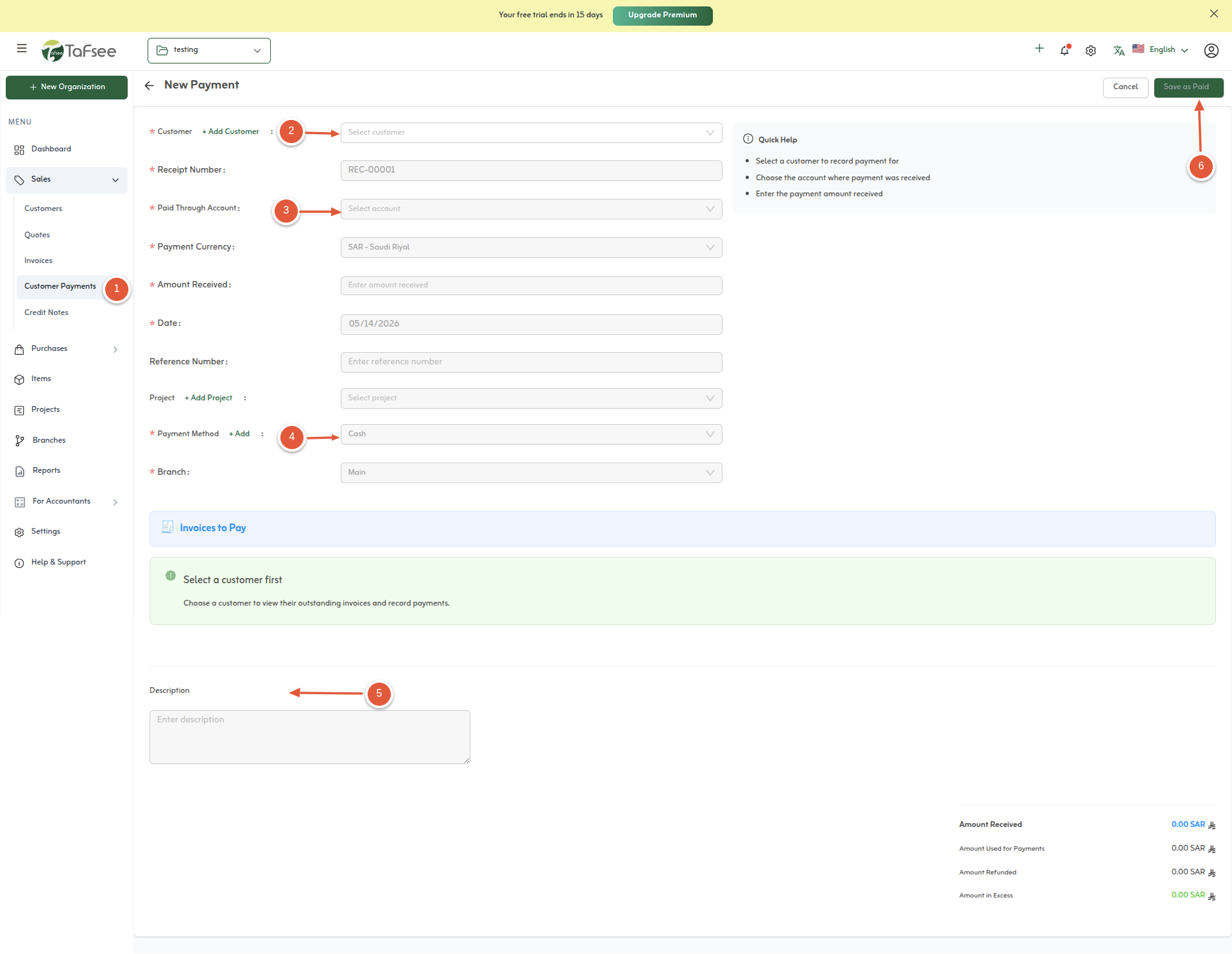
  1. Click the Record Payment tab to create a new payment.
  2. Select a customer in the customer list for the new payment.
  3. Select the paid through account for the payment.
  4. Select the payment method cash, cheque, bank, and upi.
  5. Add a description note for a payment.
  6. Finally click the save as paid button.

Create Credit Note

Create New Credit Note in Tafsee Books
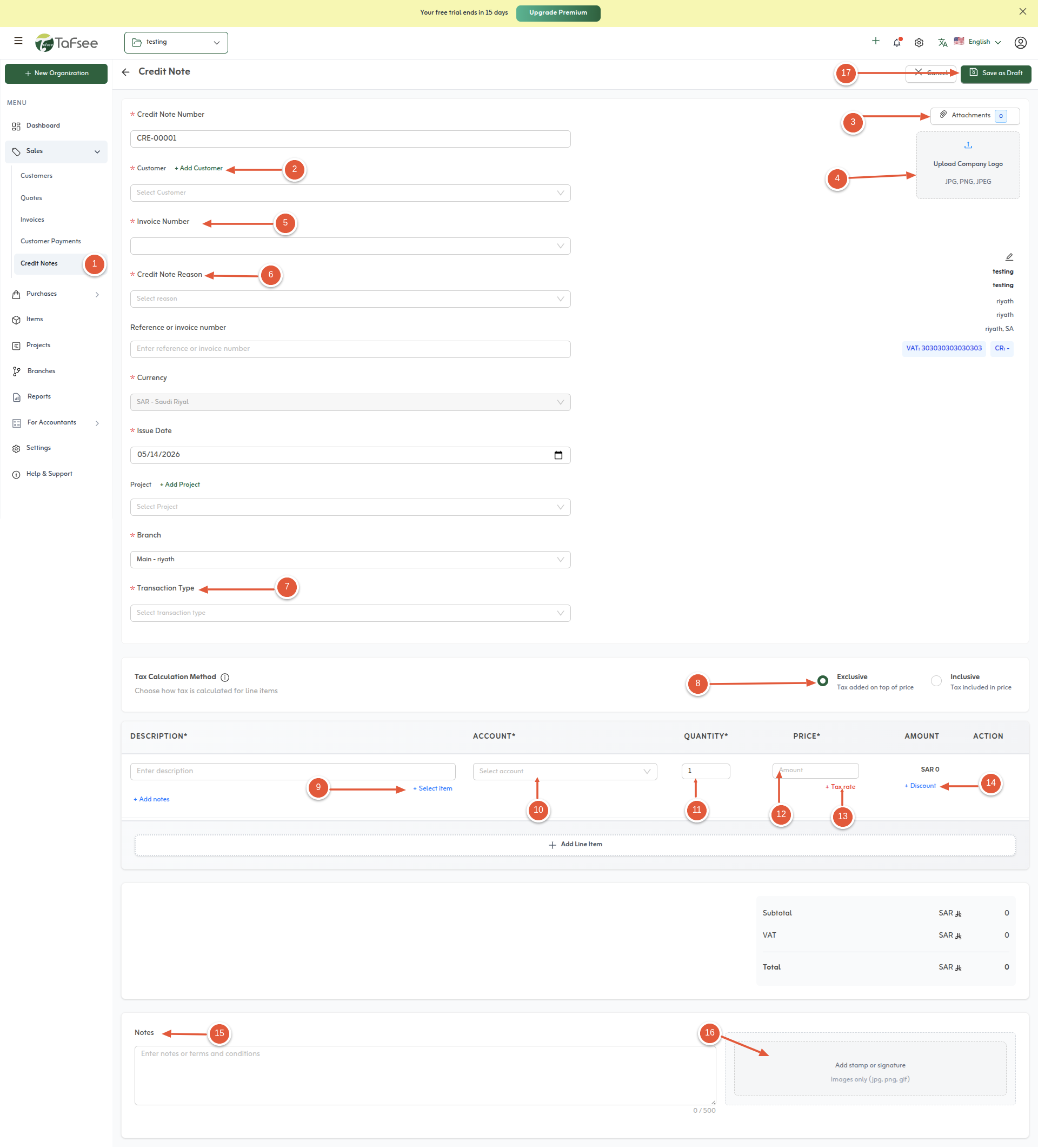
  1. Click the credit note tab to add a new credit note.
  2. Select a customer in the customer list for the credit note.
  3. Add an attachment for a credit note.
  4. Upload your logo to the credit note.
  5. Select the invoice for the credit note.
  6. Add a reason for credit note.
  7. Select the transaction type from the options normal supply, export and others.
  8. Select your preferred tax method inclusive or exclusive based on your need.
  9. Select an item for the credit in the items section.
  10. Select the account type for the credit note.
  11. Set a quantity of the item in this section.
  12. Set a price for the items.
  13. Select the tax rate options choose the vat on sales, zero rated tax, exempt, out of scope tax rate based on your preference.
  14. Set a discount for the item price based on the percentage or fixed rate.
  15. Add a note for the credit note.
  16. Add your digital signature or stamp.
  17. Finally save the credit note.

Create Vendor

Create New Vendor in Tafsee Books
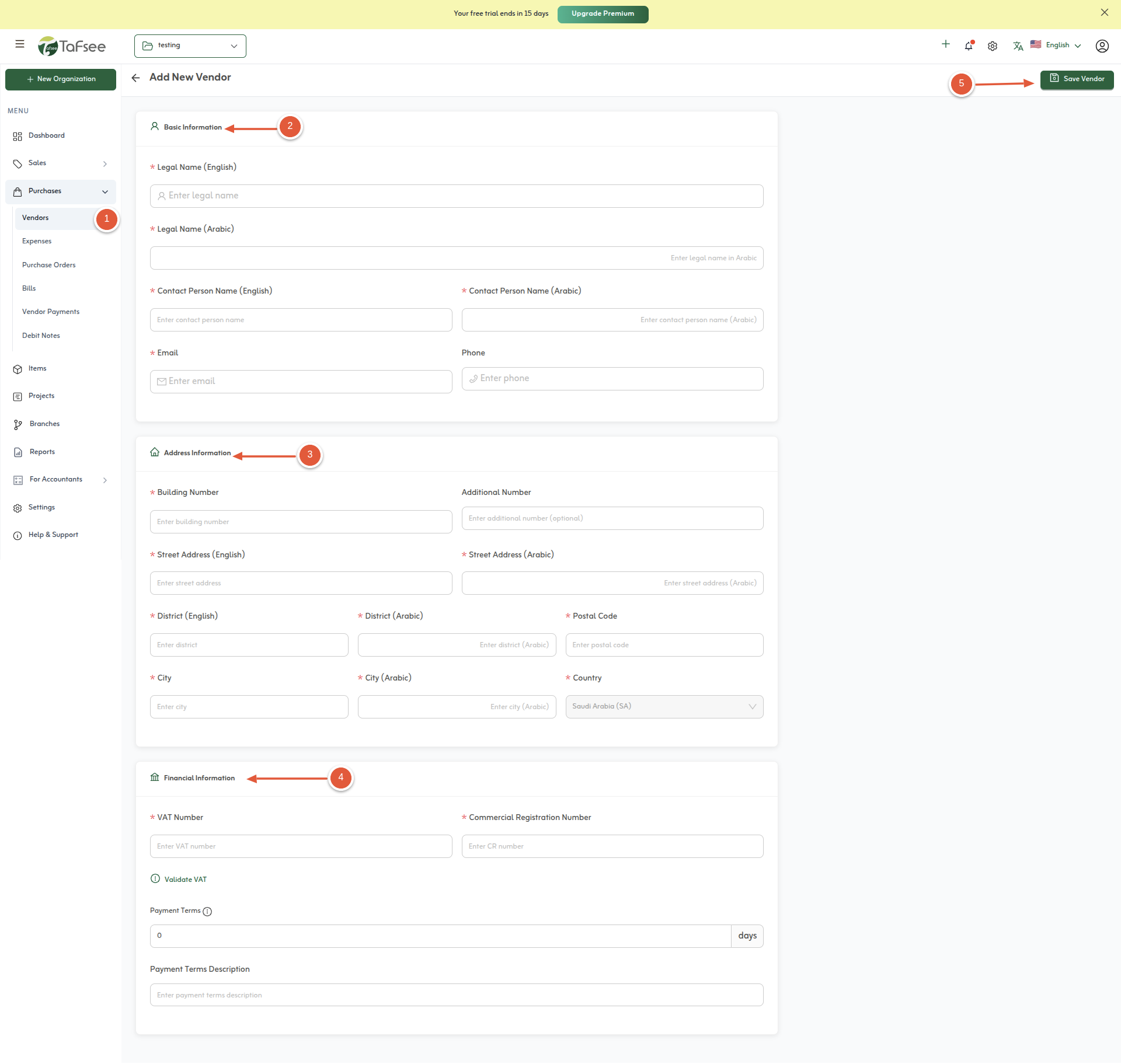
  1. Click the vendor tab to create a new vendor in this section.
  2. Fill the business information of the vendor.
  3. Fill the Address information of the vendor.
  4. Fill the Financial information of the vendor.
  5. Click the save vendor button to complete the process.

Create Expense

Create New Expense in Tafsee Books
  1. Click the expense tab to create a new expense.
  2. Select the vendors from the vendors list.
  3. Select the expense Account for the expense.
  4. Fill the expense amount.
  5. Select the paid through account for the expense.
  6. Add a description for the expense.
  7. Add the attachment for the expense.
  8. Save the expense.

Create Purchase Order

Create New Purchase Order in Tafsee Books
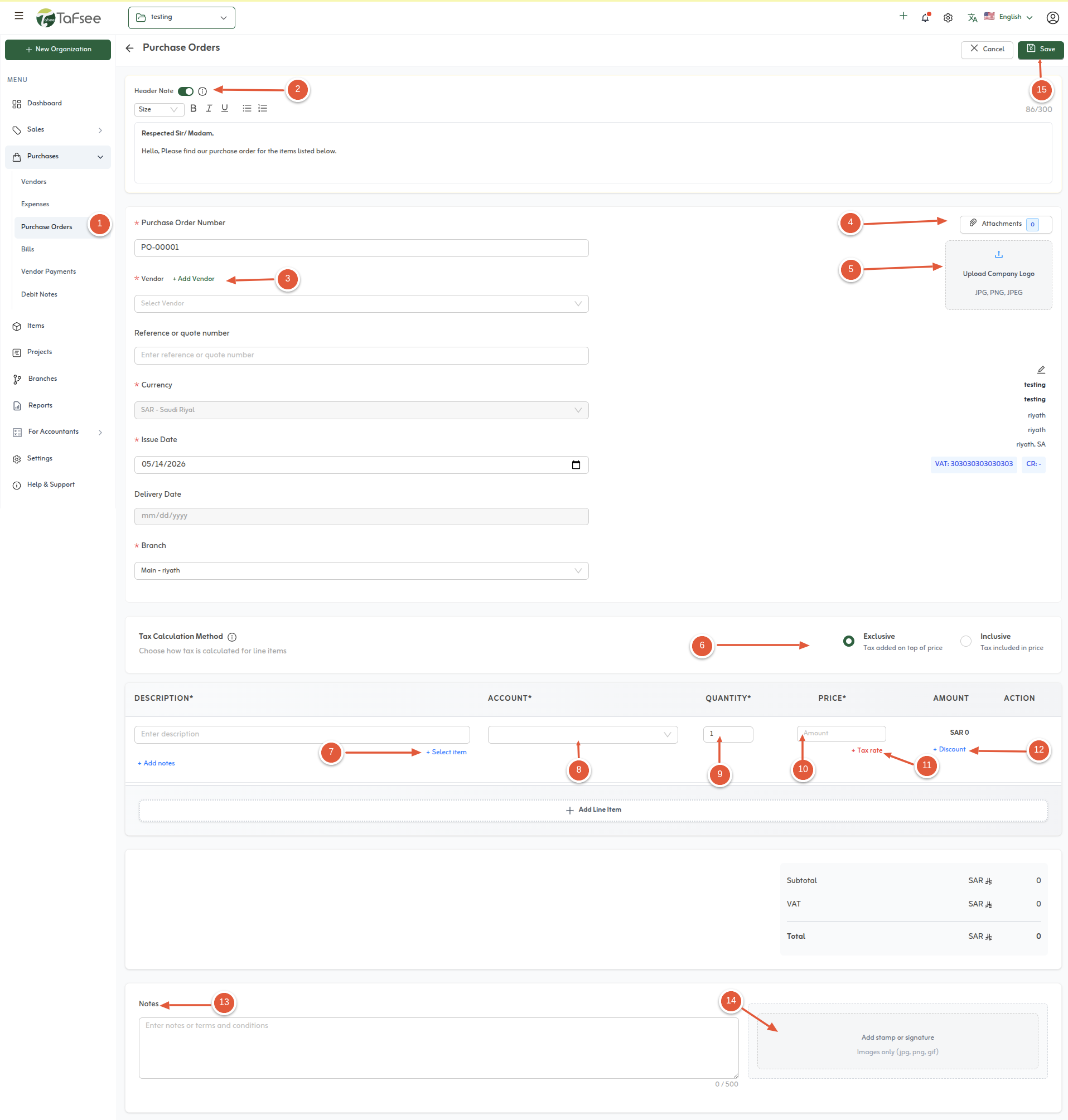
  1. Click the purchase order tab to create a purchase order.
  2. Add a header note for the quote; it's an optional thing.
  3. Select a vendor in the vendor list for the quote.
  4. Add an attachment for a quote.
  5. Upload your logo to the quote.
  6. Select your preferred tax method inclusive or exclusive based on your need.
  7. Select an item for the purchase order in the items section.
  8. Select the account type for the purchase order.
  9. Set a quantity of the item in this section.
  10. Set a price for the items.
  11. Select the tax rate options choose the vat on sales, zero rated tax, exempt, out of scope tax rate based on your preference.
  12. Set a discount for the item price based on the percentage or fixed rate.
  13. Add a note for the purchase order.
  14. Add your digital signature or stamp.
  15. Finally save the purchase order.

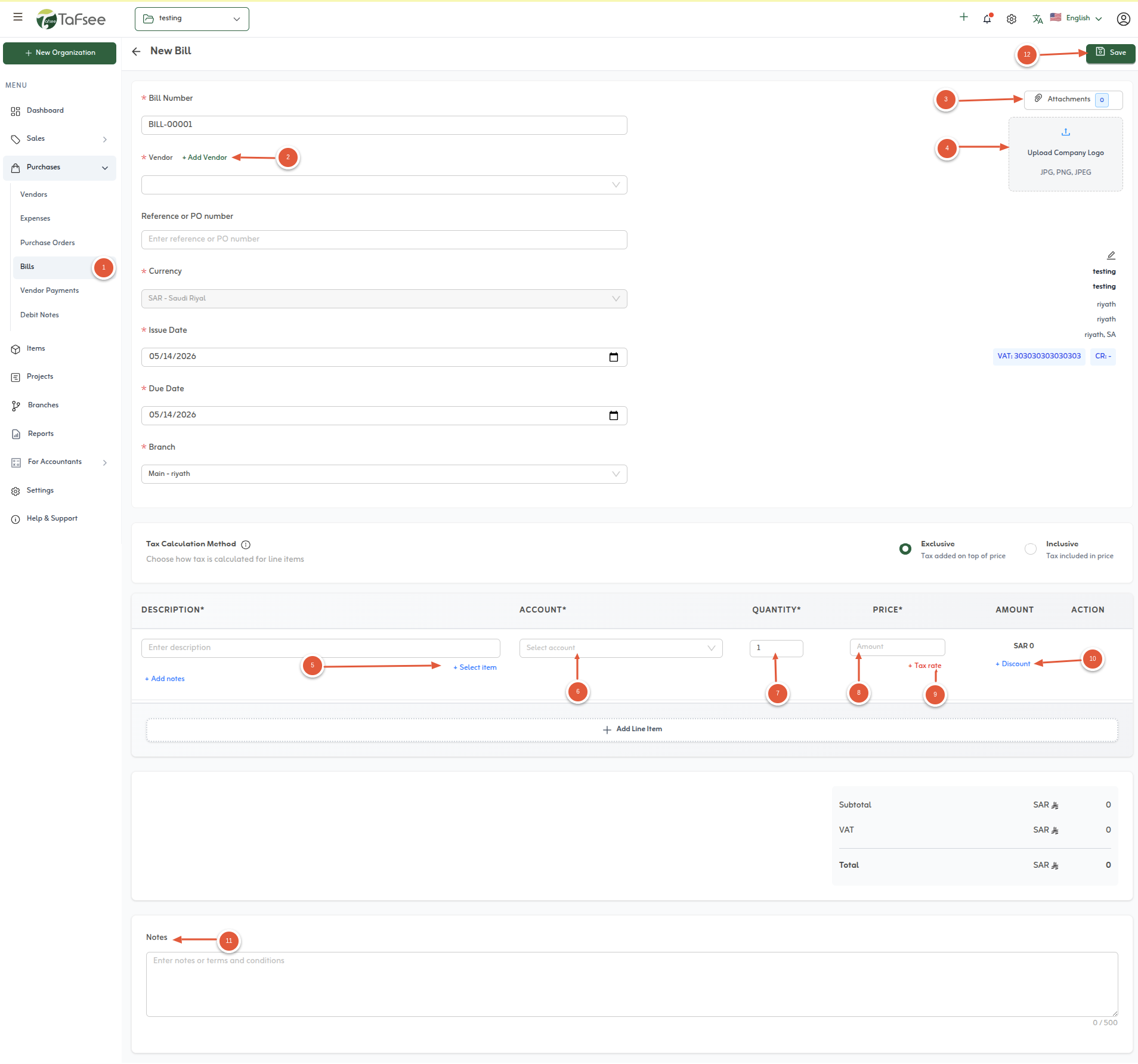
Create a Bill

Create New Bill in Tafsee Books
  1. Click the Bills tab under Purchases to create a new bill.
  2. Select a vendor from the vendor list for the bill.
  3. Add an attachment when you need the supplier document or supporting files on record.
  4. Upload your organisation logo so the bill PDF matches your branding.
  5. Select an item for the bill from the items section.
  6. Select the expense or account type for each line when your chart of accounts requires it.
  7. Enter the quantity for each line item.
  8. Set the unit price for each line.
  9. Pick the applicable tax treatment per line—such as VAT on purchases, zero-rated, exempt, or out of scope—based on the supply and your organisation's rules.
  10. Apply a line discount using either a percentage or a fixed amount.
  11. Add notes to the bill when you need internal or printed context.
  12. Click Save to save the bill.

Create Vendor Payment

Create New Vendor Payment in Tafsee Books
  1. Click the vendor Payment tab to create a new payment.
  2. Select a vendor in the vendor list for the new payment.
  3. Select the paid through account for the payment.
  4. Select the payment method cash, cheque, bank, and upi.
  5. Add a description note for a payment.
  6. Finally click the save as paid button.

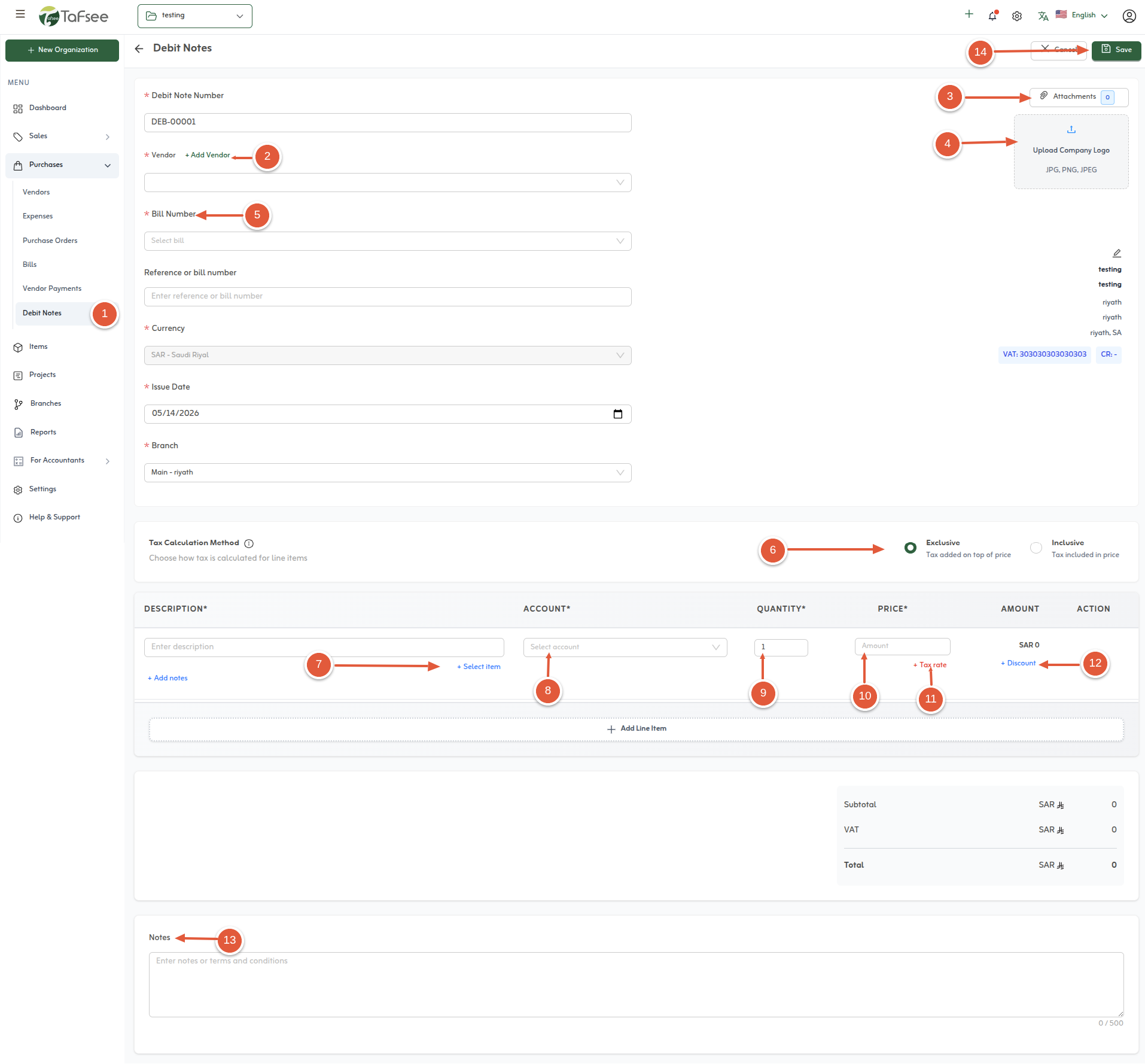
Create Debit Note

Create New Debit Note in Tafsee Books
  1. Click on the Debit Note tab to create a new debit note.
  2. Select a vendor from the vendor list for the debit note.
  3. Add an attachment related to the debit note, if required.
  4. Upload your logo to customize the debit note.
  5. Select the related bill for the debit note.
  6. Choose your preferred tax method — Inclusive or Exclusive — based on your business requirement.
  7. Select an item for the debit note from the items section.
  8. Choose the appropriate account type for the debit note.
  9. Enter the quantity for the selected item.
  10. Set the price for each item.
  11. Select the applicable tax rate option, such as VAT on Sales, Zero-Rated Tax, Exempt, or Out of Scope, according to your preference.
  12. Apply a discount to the item price using either a percentage or a fixed rate.
  13. Add additional notes for the debit note if needed.
  14. Finally, click the Save button to save the debit note successfully.

Accounting

Tafsee Books

Cloud accounting software built for Saudi Arabia with invoicing, VAT workflows, and reporting.

🇸🇦 Built for Saudi invoicing workflowsBilingual support15-day free trial